RStudio on Kebnekaise
Why is this page at UPPMAX?
It is the intention that this guide is moved to the HPC2N documentation. However, it has not been suggested to be added to their documentaton yet.
Introduction
RStudio is an IDE specialised for the R programming language.
In this session, we show how to use RStudio on Kebnekaise.
As RStudio is a resource-heavy program, it must be run on an interactive session.
Procedure to start RStudio
Below is a step-by-step procedure to start RStudio on Kebnekaise.
Prefer a video?
1. Go to the HPC2N OpenOnDemand portal
Go to the HPC2N OpenOnDemand portal and click 'Login to HPC2N OnDemand'.
What does that look like?
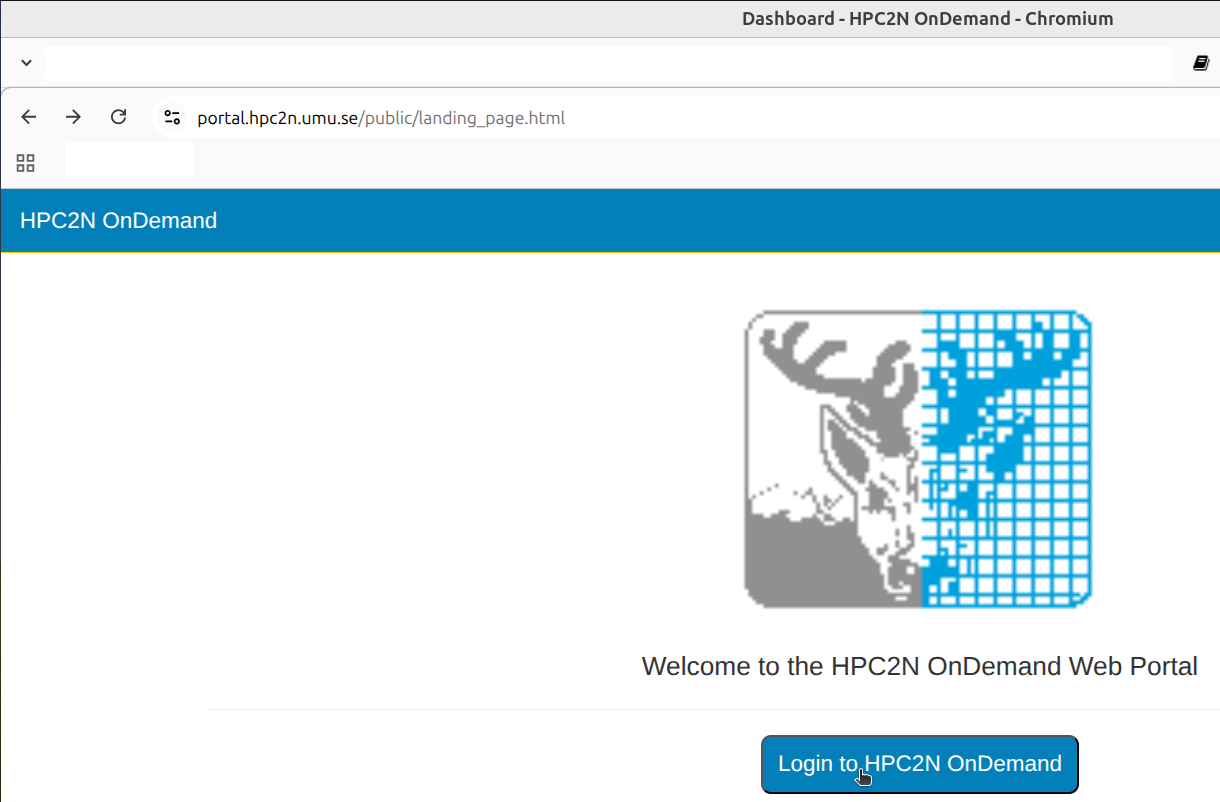
Click 'Login to HPC2N OnDemand'
2. Sign in to your account
Click 'Sign in' to arrive at the portal.
What does that look like?
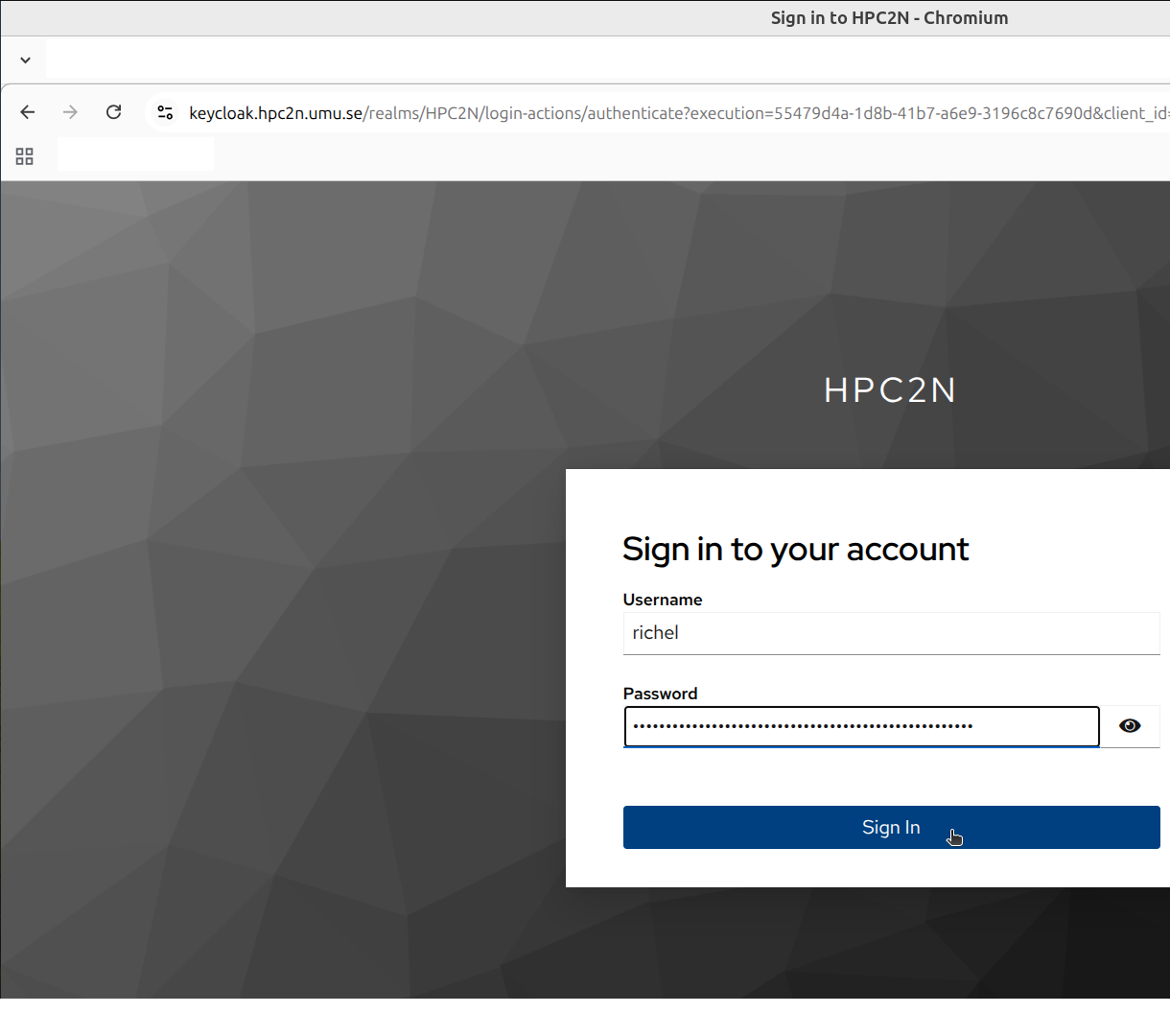
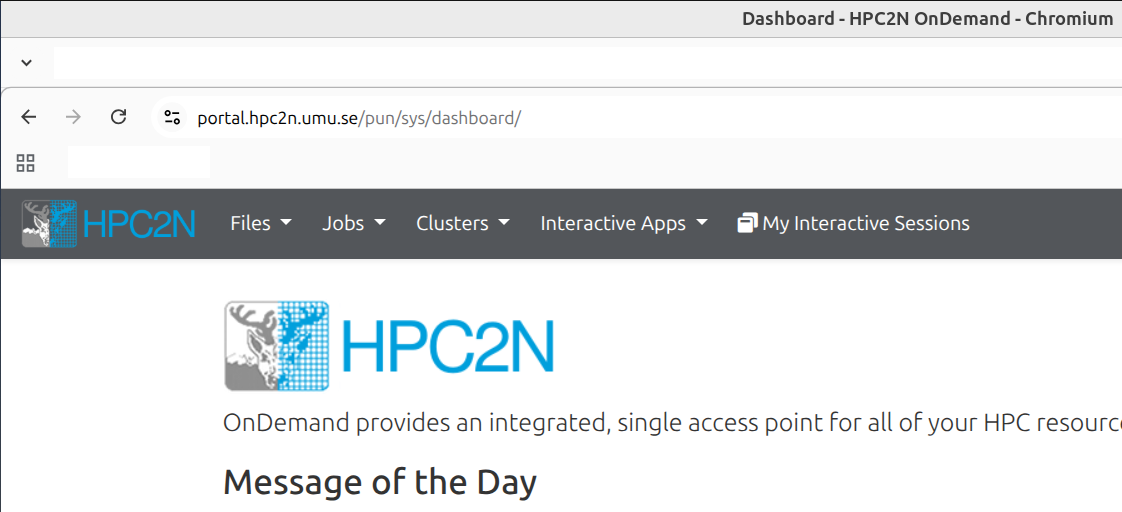
What does the HPC2N OpenOnDemand portal look like?
3. Click on 'RStudio Server'
Click 'Interactive Apps | RStudio Server' to arrive at the launch settings.
What does that look like?
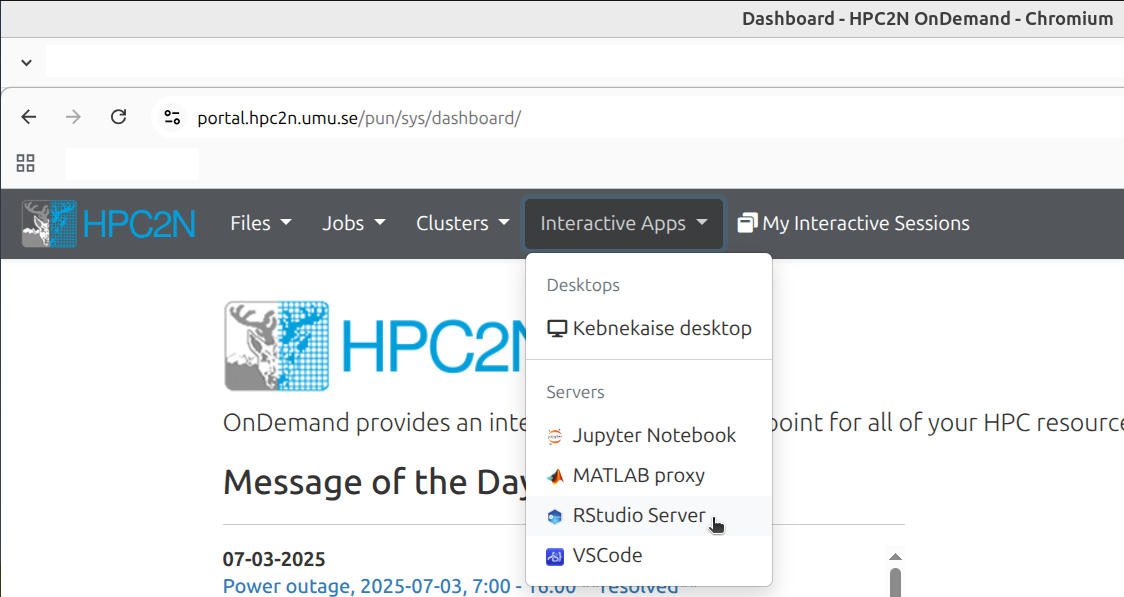
Click 'Interactive Apps | RStudio Server'
What do the launch settings look like?
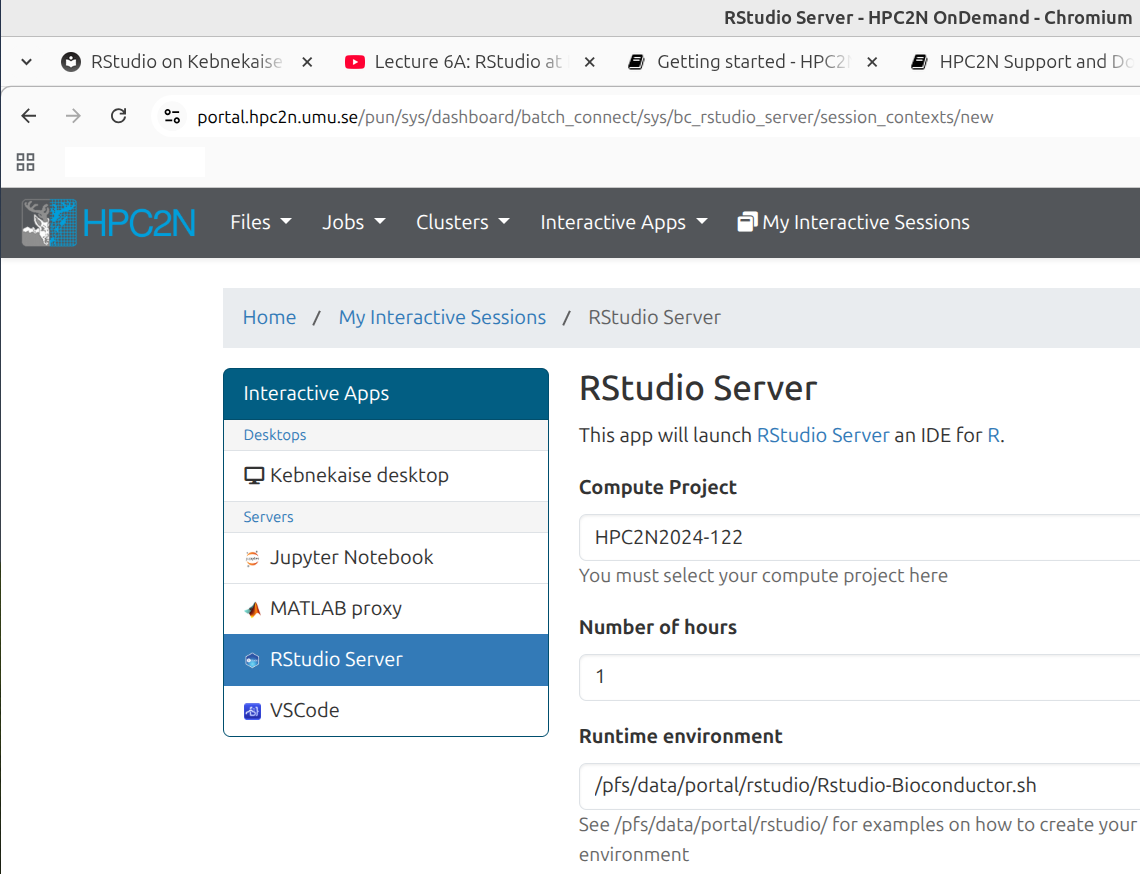
4. Click on 'Launch'
In the launch settings, scroll down and click 'Launch' to start the launch.
What does that look like?
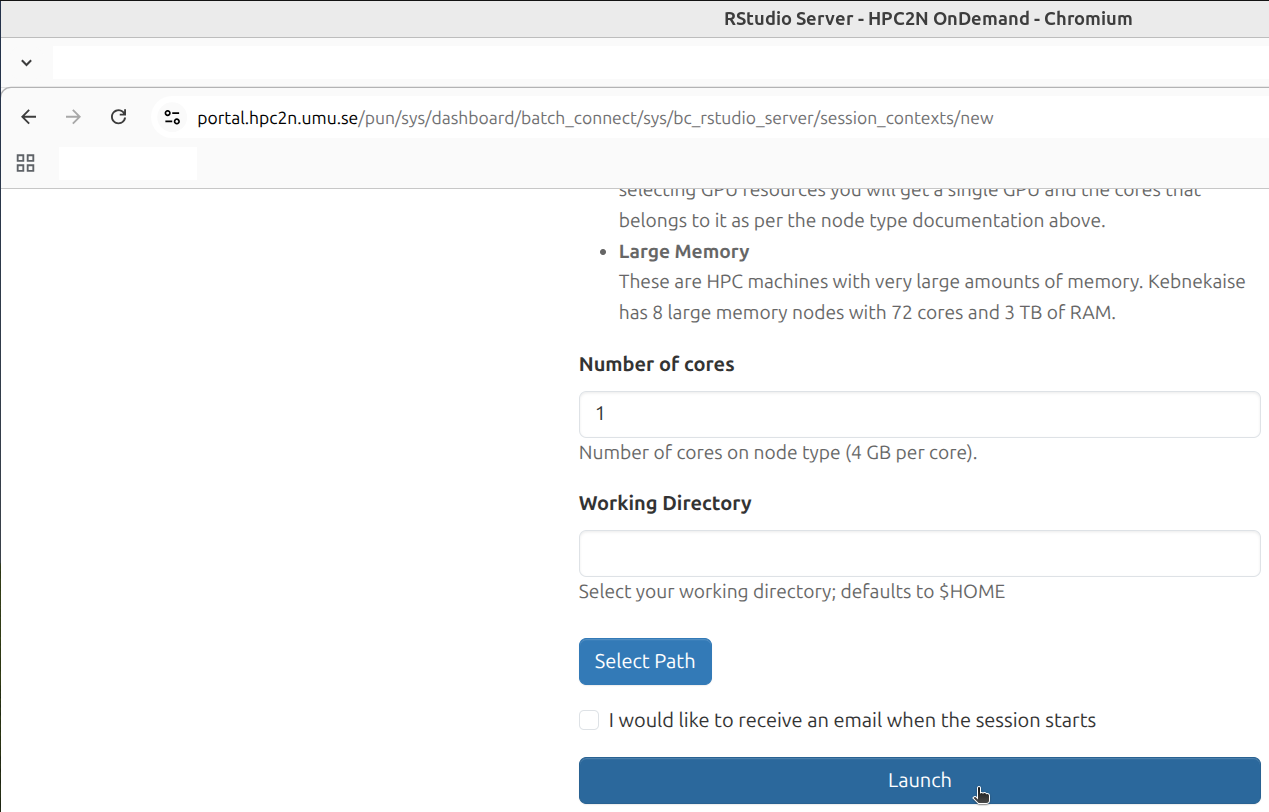
Click 'Launch'
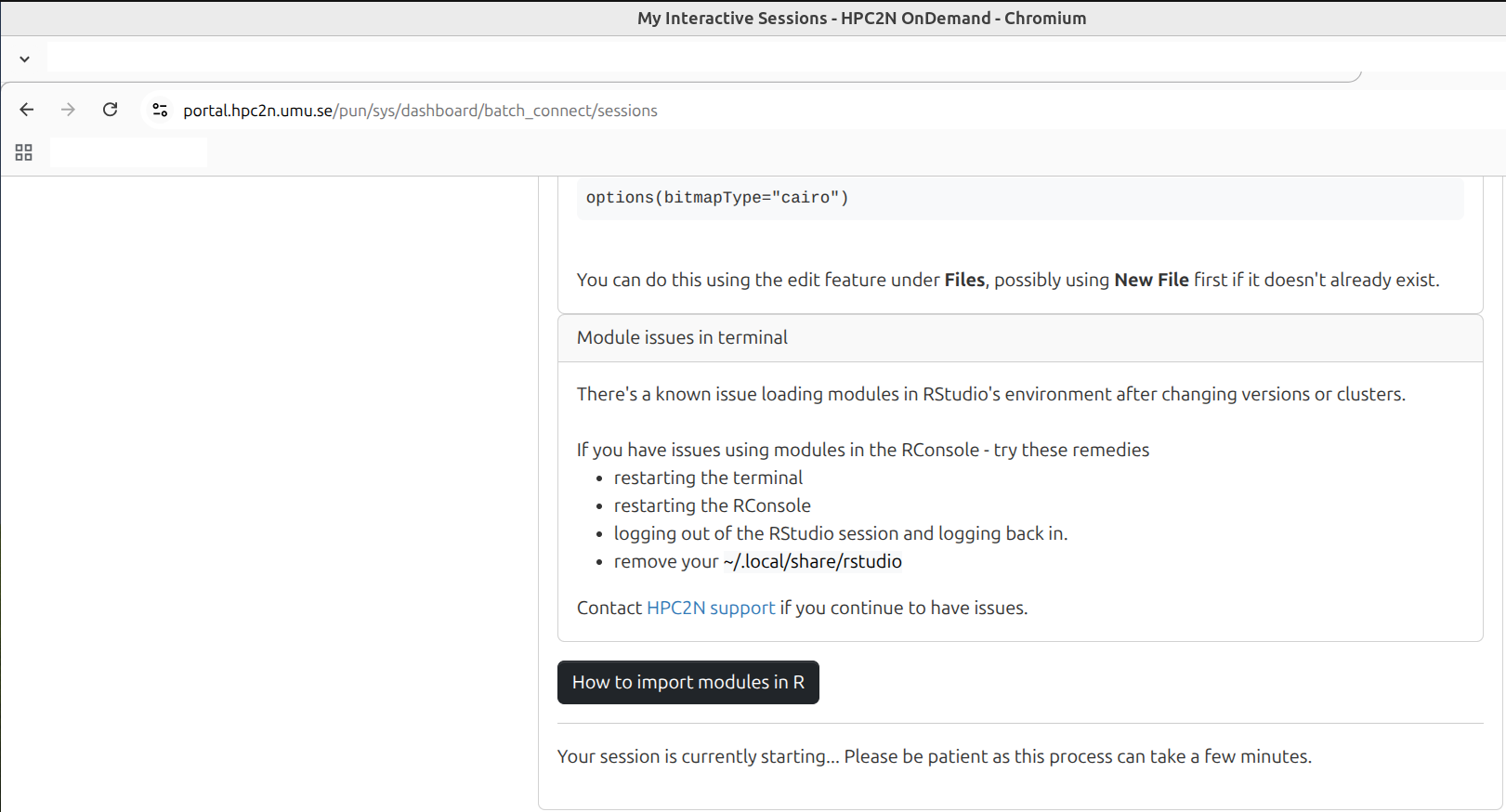
What does launching look like while in progress?
At the top you will see this:
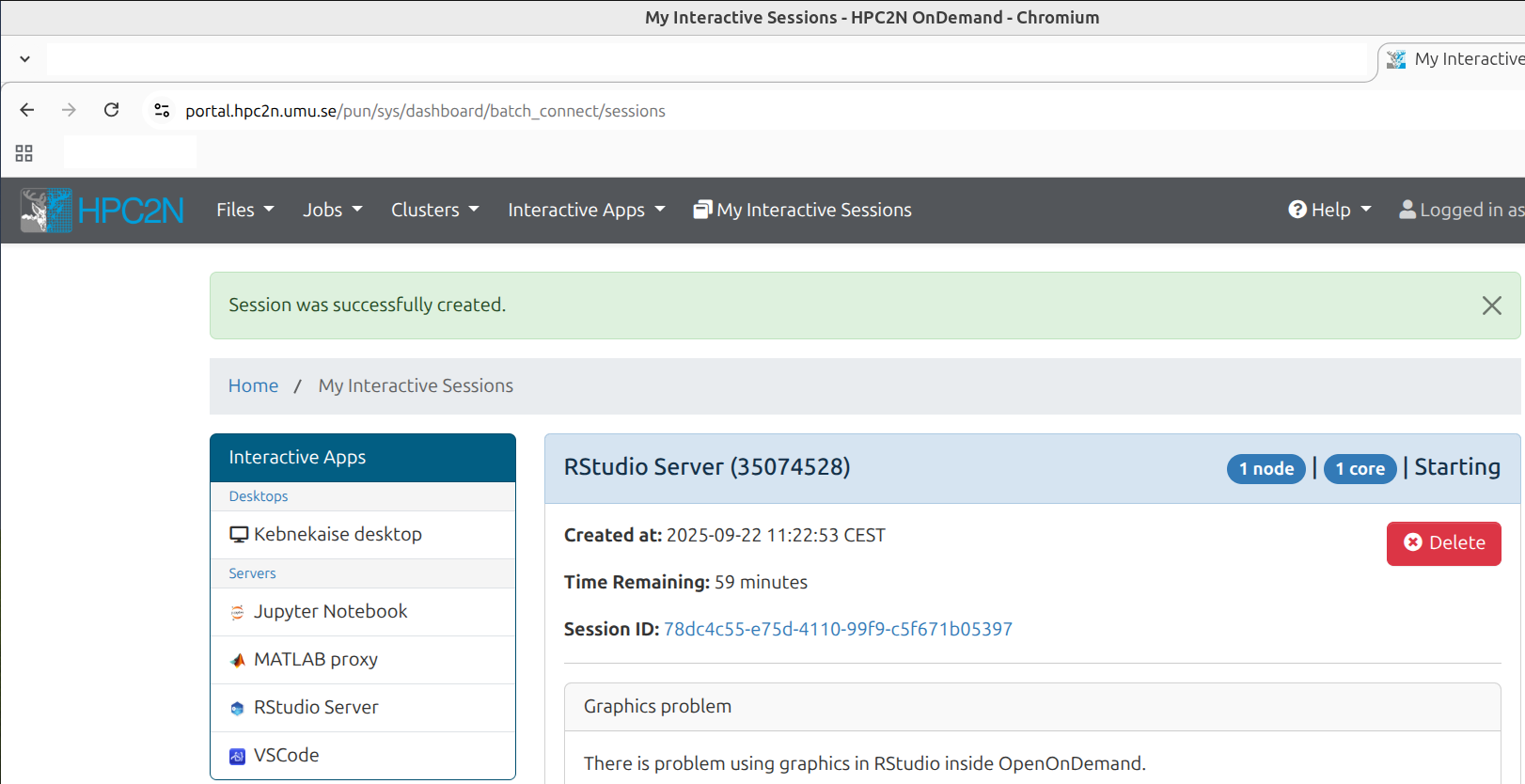
At the bottom you will see this:
5. Click 'Connect to RStudio Server'
When the launching is done, click 'Connect to RStudio Server'.
What does that look like?
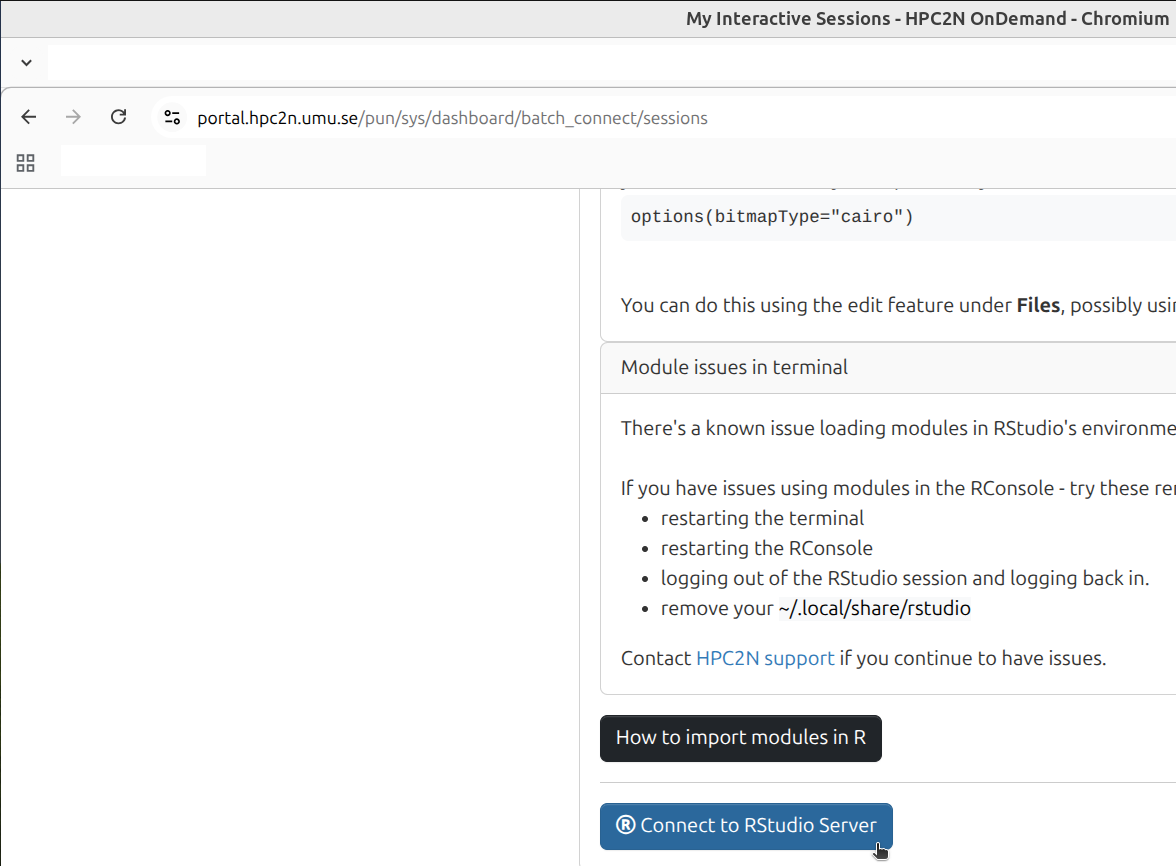
Click 'Connect to RStudio Server'
6. Done
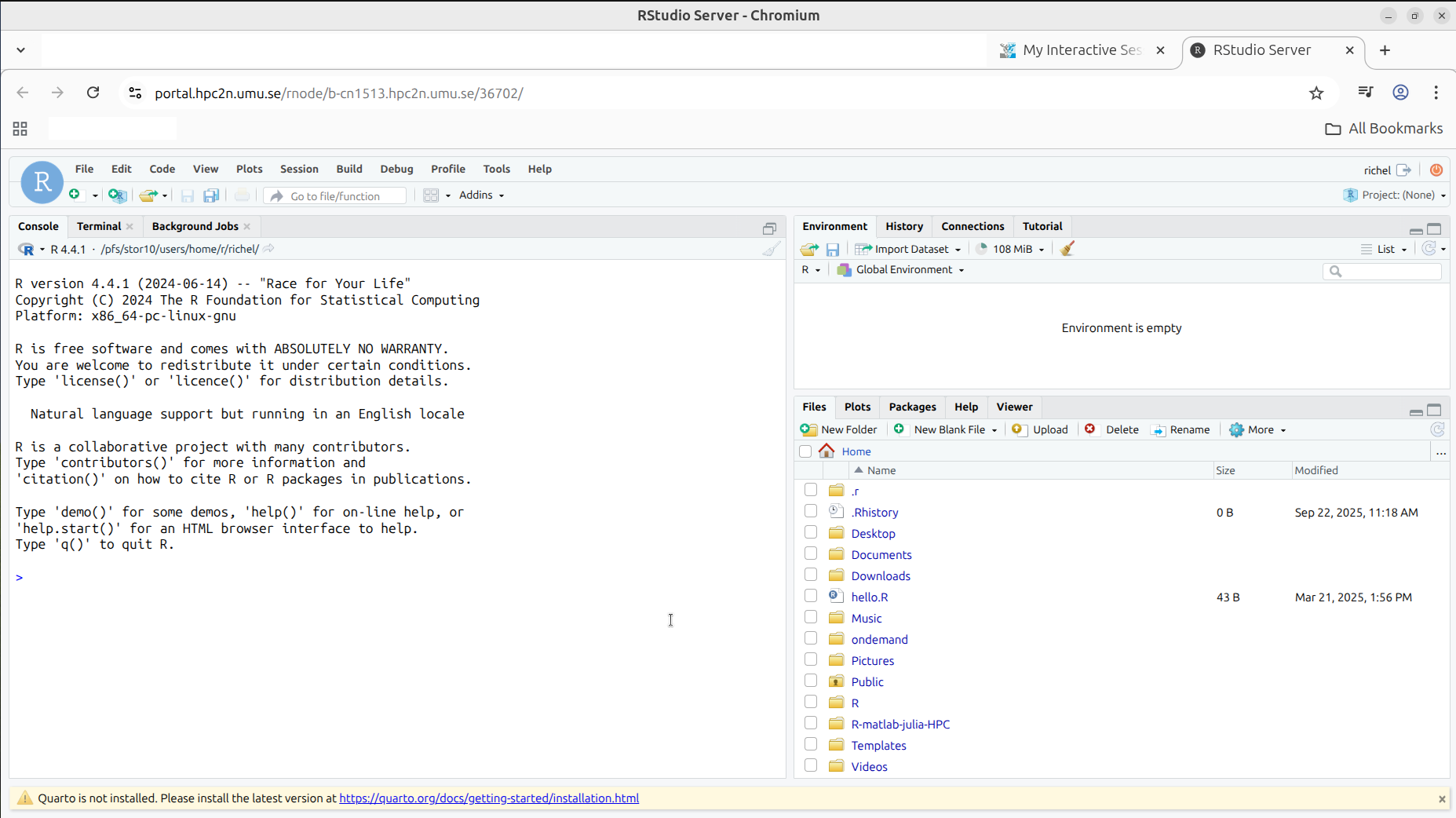
Now, you have started RStudio: